cs:s skin install guide
If the flood of emails I get every week requesting help is anything to judge by, there are still a lot of people wanting to know how to customize their Counter-Strike Source experience. This is a no-nonsense, clear and detailed guide that will show you everything you need to know. Let's get on with it.
The first thing you need to be able to do is locate the directory you've installed Steam to. For most people, this will be C:\Program Files\Steam but your install could be different, such as C:\Valve\Steam or the like.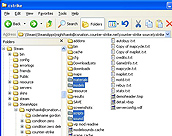
your cstrike folderThis is the main directory we will be working with. Within this directory are many folders and files, but there are only 4 folders we are concerned with. They are: materials, models, scripts, and sound. Don't be worried if some of these directories are missing... the install process will create the necessary ones without you needing to.
Generally speaking, all custom models will install files to the materials and models directories, while only some will install custom sounds to the sound directory, and very few change anything in the scripts directory.
You can now open the .zip file you downloaded from CS-Nation. Note that if you are installing skins downloaded from a different site, you may encounter some problems. Generally speaking, you will find something that looks like this.
Depending on the program you use, you may have a screen that looks different. Windows XP's built-in zip extraction is typically the easiest to use, but you can accomplish the same thing with any unzip program.
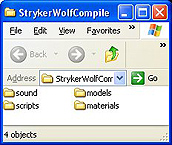
What now? Simply drag and drop (or copy-paste) any of the previously mentioned folders (materials, models, scripts, and sound) that appear in the .zip file into your \cstrike directory, overwriting anything that's already there. Voila! Your custom model is installed, ready for you to play with the next time you open CS:S.
Common problems
Sometimes authors include multiple versions of their model in a single .zip file, which, depending on the method, can confuse nearly all users. There are a few different ways this can happen, and thus different ways of dealing with it.
Way #1
Complete separate versions. This is where the .zip file will have a few subfolders named after different versions of the model, with none of the 4 important directories shown in the main part.
Pick a version by opening its folder, and then extract the important folders into your \cstrike directory as was demonstrated above.
Way #2
Sometimes, to save space in the .zip file, parts of the model that are the same between various versions will be stored in the common way, and only the different parts are put in their own sub-folders. Take this picture as an example.
In this example, you would install all of the important folders in the main part of the .zip file (models, materials, and sound). Next you would pick the version you want (blue, black, or silver), open the corresponding folder, and likewise again install any important folders inside of that, overwriting the existing folders.
If the version folder (in this example, the blue/black/silver folders) contains individual files instead of a folder, find the corresponding files in your CS:S install (usually burried within the materials folder) and replace them with the files included with this version.
Way #3
Unfortunately, sometimes authors make it a bit more difficult for the end-user. Here are two examples of this.
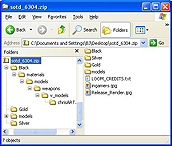
For this example, the author was lazy and didn't include correct folders for all of the color options. Here we see that the "black" color holds full path info, but neither the "gold" nor "silver" options do. What to do?
In this example, after copying the "models" folder to your "cstrike" folder, also copy the entire "materials" folder from the "black" folder, which will create the necessary directory structure. Then, if you wish to use either of the other two colors, simply copy the files in either of those directories to where the black version installed the corresponding files: in this case, the "chrisART" folder.
The second way the person who packaged the files together can make your life difficult is illustrated in this example, taken from se's C4 replacement. In this case, the skin will work properly if just installed regularly, but only the primary skin is available. To choose another skin will require making a few edits.
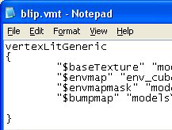
Using Notepad to open the blip.vmt file in this example reveals a text file telling CS:S which skin to use. To pick any of the other 4 skins, the 3 file references in this text file would all need to be changed to match those of the skin you would like to use, and then the modified blip.vmt file would need to be saved.
Gone are the CS1.6 days of simple, self-contained models, where 3 files could often provide everything you needed. Customizing your CS:S experience is occasionally a bit more challenging than things were in older versions, but the payoff can be huge. Some truly fantastic CS:S skins are available in our archives here at CSN. Take a look — you'll be amazed at the visual quality these have to offer.

related features
The first thing you need to be able to do is locate the directory you've installed Steam to. For most people, this will be C:\Program Files\Steam but your install could be different, such as C:\Valve\Steam or the like.
- If you're not sure where to find your Steam install, here's a simple method. First find the icon you use to launch Steam. Right-click on this icon, and select "properties" from the context menu. From there, you should be able to see where you've installed Steam. Simply cancel this box when you're done determining the location.
\Steam\SteamApps\[email protected]\counter-strike source\cstrike

your cstrike folder
Generally speaking, all custom models will install files to the materials and models directories, while only some will install custom sounds to the sound directory, and very few change anything in the scripts directory.
You can now open the .zip file you downloaded from CS-Nation. Note that if you are installing skins downloaded from a different site, you may encounter some problems. Generally speaking, you will find something that looks like this.
Depending on the program you use, you may have a screen that looks different. Windows XP's built-in zip extraction is typically the easiest to use, but you can accomplish the same thing with any unzip program.
What now? Simply drag and drop (or copy-paste) any of the previously mentioned folders (materials, models, scripts, and sound) that appear in the .zip file into your \cstrike directory, overwriting anything that's already there. Voila! Your custom model is installed, ready for you to play with the next time you open CS:S.
Sometimes authors include multiple versions of their model in a single .zip file, which, depending on the method, can confuse nearly all users. There are a few different ways this can happen, and thus different ways of dealing with it.
Way #1
Complete separate versions. This is where the .zip file will have a few subfolders named after different versions of the model, with none of the 4 important directories shown in the main part.
Pick a version by opening its folder, and then extract the important folders into your \cstrike directory as was demonstrated above.
Way #2
Sometimes, to save space in the .zip file, parts of the model that are the same between various versions will be stored in the common way, and only the different parts are put in their own sub-folders. Take this picture as an example.
In this example, you would install all of the important folders in the main part of the .zip file (models, materials, and sound). Next you would pick the version you want (blue, black, or silver), open the corresponding folder, and likewise again install any important folders inside of that, overwriting the existing folders.
If the version folder (in this example, the blue/black/silver folders) contains individual files instead of a folder, find the corresponding files in your CS:S install (usually burried within the materials folder) and replace them with the files included with this version.
Way #3
Unfortunately, sometimes authors make it a bit more difficult for the end-user. Here are two examples of this.
For this example, the author was lazy and didn't include correct folders for all of the color options. Here we see that the "black" color holds full path info, but neither the "gold" nor "silver" options do. What to do?
In this example, after copying the "models" folder to your "cstrike" folder, also copy the entire "materials" folder from the "black" folder, which will create the necessary directory structure. Then, if you wish to use either of the other two colors, simply copy the files in either of those directories to where the black version installed the corresponding files: in this case, the "chrisART" folder.
The second way the person who packaged the files together can make your life difficult is illustrated in this example, taken from se's C4 replacement. In this case, the skin will work properly if just installed regularly, but only the primary skin is available. To choose another skin will require making a few edits.
Using Notepad to open the blip.vmt file in this example reveals a text file telling CS:S which skin to use. To pick any of the other 4 skins, the 3 file references in this text file would all need to be changed to match those of the skin you would like to use, and then the modified blip.vmt file would need to be saved.
- To be specific, if you wanted to use spitz' skin, in this example that would mean changing "blip5_chimp" to "blip2_spitz", changing "blip5_ref" to "blip2_ref", and lastly "blip5_norm" to "blip2_norm". Needless to say, it's a bit of a headache, especially for the average user, but if you want the extras sometimes you have to put out extra effort.
Gone are the CS1.6 days of simple, self-contained models, where 3 files could often provide everything you needed. Customizing your CS:S experience is occasionally a bit more challenging than things were in older versions, but the payoff can be huge. Some truly fantastic CS:S skins are available in our archives here at CSN. Take a look — you'll be amazed at the visual quality these have to offer.
Your CS folder |  Grab the goodies | 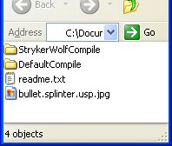 Pick your version... |
 ... Voila! Copy these. | 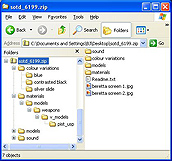 Pick the color you want | 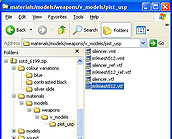 Find and replace |
 One color is right | 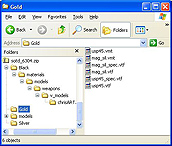 Copy folders, then replace | 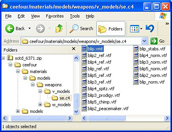 Yes, you have to edit this file |
 in notepad, replace relevant names |
 |    |
related features